
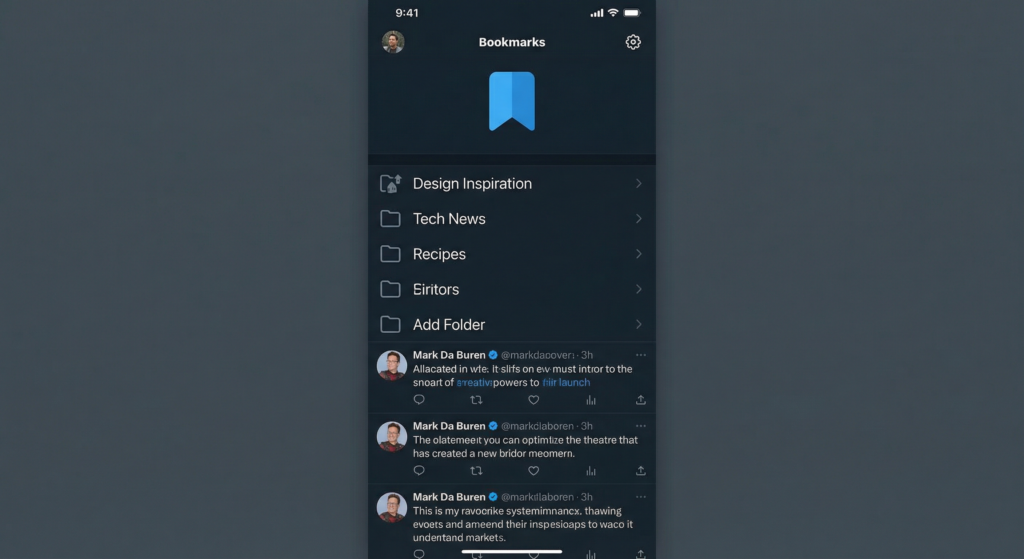
X Bookmarks are one of the platform’s most underutilized features. Most people know you can save a post — but few realize you can organize those saves into folders, search within them, and use bookmarks as a powerful content research and curation system.
This guide covers everything you need to know: how bookmarks work, how to organize them effectively, and how to make them a genuine part of your X workflow.
What Are X (Twitter) Bookmarks?
Bookmarks let you privately save posts on X without liking or retweeting them. Unlike likes, bookmarks are completely private — other users can’t see what you’ve saved. There’s no notification sent to the original poster when you bookmark their content.
You can access your bookmarks from the left sidebar (on desktop) or the bottom navigation (on mobile) under the bookmark icon.
Bookmarks vs. Likes: What’s the Difference?
Many users default to liking posts as a way to “save” them, but likes are public — they appear on your profile and notify the original poster. Bookmarks offer a cleaner, private way to save content you actually want to return to.
How to Bookmark a Post on X
On Desktop
- Hover over any post
- Click the share icon (the upload/arrow icon at the bottom right of the post)
- Select “Bookmark”
On Mobile (iOS/Android)
- Tap the share icon on any post
- Tap “Add Bookmark”
You’ll see a brief confirmation message. The post is now saved to your Bookmarks.
How to Organize Bookmarks into Folders
X Premium (formerly Twitter Blue) subscribers can create bookmark folders — one of the most useful features for power users. Here’s how to use them:
Creating a Folder
- Go to your Bookmarks page
- Tap the folder icon (top right on mobile, or “Add to Bookmark Folder” after saving)
- Select “Create new folder”
- Name your folder (e.g., “Content Ideas,” “Research,” “Competitors,” “Swipe File”)
Adding a Post to a Folder
- Tap the share icon on any post
- Select “Add Bookmark to Folder”
- Choose or create the folder
You can have a post in multiple folders simultaneously, which is useful for cross-category content.
Smart Ways to Organize Your Bookmarks
The real power of bookmarks comes from having a system. Here are folder structures that work:
For Content Creators
- Swipe File — great hooks, openers, and post formats to model
- Thread Ideas — topics you want to write about
- Testimonials/Social Proof — reviews or kind words from others
- Industry News — articles and announcements to reference
For Researchers and Journalists
- Source Material — posts with data, studies, or expert quotes
- Story Leads — emerging topics or unusual takes
- Archive — posts that may disappear (deleted accounts, etc.)
For Business/Marketing Teams
- Competitor Moves — what rivals are posting
- Customer Feedback — relevant mentions and reviews
- Campaign Inspiration — creative approaches to model
Bookmarks vs. Likes vs. Lists: Comparison Table
| Feature | Bookmarks | Likes | Lists |
|---|---|---|---|
| Privacy | Fully private | Public | Public or private |
| Notifies poster? | No | Yes | No |
| Organizable into folders? | Yes (Premium) | No | Yes (by account) |
| Searchable? | Yes | No (within likes) | Yes (by list) |
| Best for | Saving specific posts | Engagement signal | Following accounts by topic |
| Requires Premium? | Folders require Premium | No | No |
How to Search Within Your Bookmarks
X has a native bookmark search function — and it’s more powerful than most people realize. Here’s how to use it:
- Open your Bookmarks page
- Use the search bar at the top of the page
- Type keywords, phrases, or usernames
- X will surface matching bookmarked posts
This is genuinely useful. If you’ve bookmarked a thread about “email marketing” months ago, you can find it in seconds instead of endless scrolling.
Pro Tips for Bookmark Power Users
Tip 1: Use Bookmarks as a Reading List
See a long thread you want to read later? Bookmark it immediately instead of trying to remember to come back. Create a “Read Later” folder and clear it weekly.
Tip 2: Bookmark Before Content Disappears
Tweets can be deleted. Accounts can be suspended. If you see something important — news, data, a claim you want to fact-check — bookmark it immediately. Note that once deleted, the original post won’t be recoverable even in your bookmarks (you’ll see an empty placeholder).
Tip 3: Export Insight
Premium users can request a data export from X that includes bookmarks. Useful for archiving purposes or migrating your saved content library.
Tip 4: Build a Content Calendar from Bookmarks
Many creators use their “Content Ideas” bookmark folder as a raw content backlog. When it’s time to write, they pick from saved posts, add their perspective, and publish their own take.
Limitations to Know
- Bookmark folders are an X Premium feature — free users get a flat, unorganized list
- If a bookmarked post is deleted by the author, it disappears from your saved list
- X’s API doesn’t expose bookmarks to third-party tools (for privacy), so external apps can’t sync your bookmarks
- There’s currently no way to export bookmarks as a formatted list without requesting your full data archive
FAQ: X (Twitter) Bookmarks
Q1: Can other people see my bookmarks on X?
No. Bookmarks are completely private. No one — not the person whose post you saved, not your followers, not X’s public-facing profile pages — can see what you’ve bookmarked. It’s one of the few truly private actions on the platform.
Q2: Is there a limit to how many posts I can bookmark?
X hasn’t published an official limit for bookmarks. In practice, users have reported saving thousands of posts without hitting any cap. However, very large bookmark libraries can become unwieldy without folder organization.
Q3: Do I need X Premium to use bookmarks?
No — basic bookmarks are free for all users. X Premium unlocks bookmark folders (the ability to organize bookmarks into labeled categories), but saving posts to a general bookmark list is available to everyone.
Q4: Can I bookmark someone’s reply or only original posts?
You can bookmark any post on X — original posts, replies, quote posts, and reposts. The bookmark saves the specific post you tap on, regardless of where it appears in a thread.
Q5: What happens to my bookmarks if I cancel X Premium?
Your bookmark folders and their contents should remain saved, but you may lose the ability to create new folders or manage existing ones until you resubscribe. X hasn’t always been consistent about this, so export your data before canceling if folder organization is critical to your workflow.

