X’s standard search bar barely scratches the surface of what the platform’s search engine can do. X Advanced Search lets you filter results by account, date range, engagement thresholds, and specific word combinations so you can find exactly the content you are looking for within seconds. Whether you are doing competitive research, monitoring brand mentions, tracking conversations about a specific event, or searching for an old tweet you remember posting, this guide covers everything you need to use X Advanced Search effectively in 2026.
Accessing X Advanced Search
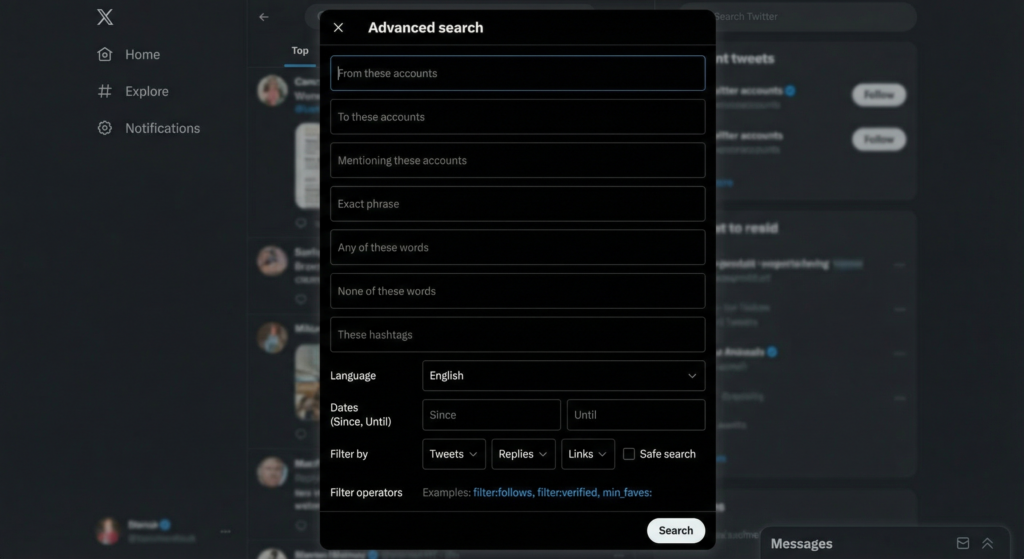
On desktop, navigate to twitter.com/search-advanced or perform a standard search and look for the Filters option in the sidebar. On mobile, you can access filter options by tapping the filter icon after entering a search query. Premium users have access to additional search capabilities and longer search history windows than free accounts.
Key Search Operators and What They Do
X search operators are special syntax rules that let you combine multiple search conditions in a single query. Learning these operators allows you to replicate most of Advanced Search’s functionality directly in the search bar without navigating to the advanced interface.
Finding Tweets From a Specific Account
Use “from:username” to search only within a specific account’s tweet history. Example: “from:elonmusk Tesla” finds all tweets from @elonmusk that mention Tesla. You can combine multiple accounts with OR: “from:username1 OR from:username2 keyword” searches both accounts simultaneously.
Searching for Replies and Mentions
Use “to:username” to find tweets sent to a specific account. Use “@username” to find all tweets that mention an account. These operators are essential for monitoring brand mentions and tracking conversations about specific people or organizations.
Date Range Filters
Use “since:YYYY-MM-DD until:YYYY-MM-DD” to restrict results to a specific time period. Example: “ChatGPT since:2023-01-01 until:2023-06-30” finds tweets about ChatGPT during the first half of 2023. Date filters are indispensable for researching how conversations about a topic evolved over time.
Minimum Engagement Filters
Use “min_retweets:N” and “min_faves:N” to filter for tweets with at least N reposts or likes. Example: “product launch min_faves:100” finds highly liked tweets about product launches. This is useful for identifying popular content in your niche and understanding what resonates most with audiences discussing specific topics.
X Search Operators Reference
| Operator | Function | Example |
|---|---|---|
| from:username | Tweets by a specific account | from:nasa moon |
| to:username | Tweets sent to a specific account | to:tesla support issue |
| @username | Tweets mentioning an account | @openai new features |
| “exact phrase” | Exact phrase match | “machine learning” jobs |
| since:YYYY-MM-DD | After a specific date | AI since:2024-01-01 |
| until:YYYY-MM-DD | Before a specific date | crypto until:2022-12-31 |
| min_retweets:N | At least N reposts | thread min_retweets:50 |
| min_faves:N | At least N likes | tips min_faves:200 |
| lang:xx | Specific language | football lang:es |
| -keyword | Exclude keyword | python -snake |
Advanced Search Use Cases
Competitive Intelligence
Search “from:competitor_username” with a date filter to see what a competitor has been posting recently. Add “min_faves:50” to identify their most engaging content. Review which topics generate the most engagement for competitors in your niche to inform your own content strategy.
Finding Your Old Tweets
Use “from:yourusername” combined with keywords you remember using and a date range if you know approximately when you posted. This is often faster than scrolling through your own timeline, especially for tweets from years ago that are buried under thousands of newer posts.
Frequently Asked Questions
How far back does X search go?
Standard X search typically returns results from the past 7-10 days for most users. X Premium subscribers access extended search history going back further. The official Advanced Search interface provides the widest date range access for authenticated users. Historical searches going back to 2006 are available through some premium data products offered by X’s API partners.
Does X Advanced Search work on mobile?
The full Advanced Search form is desktop-only. On mobile, you can type search operators directly into the search bar to achieve similar results. The mobile search bar supports most of the same operators as the desktop Advanced Search form when entered correctly.
Can I save searches on X?
Yes. After performing a search, tap the three-dot menu or the bookmark icon in the search results to save the search for quick access in the future. Saved searches appear in your search history and can be accessed with a single tap. This is particularly useful for monitoring brand mentions or ongoing topics you check regularly.
Advanced Search Is One of X’s Most Underused Features
Most X users do not know that operator-based search exists. Those who learn to use it gain a significant advantage for research, competitive monitoring, finding old content, and identifying influencers in specific topic areas. Bookmark the advanced search page, practice the operators with topics you care about, and add it to your regular workflow when you need to find specific information on the platform.